
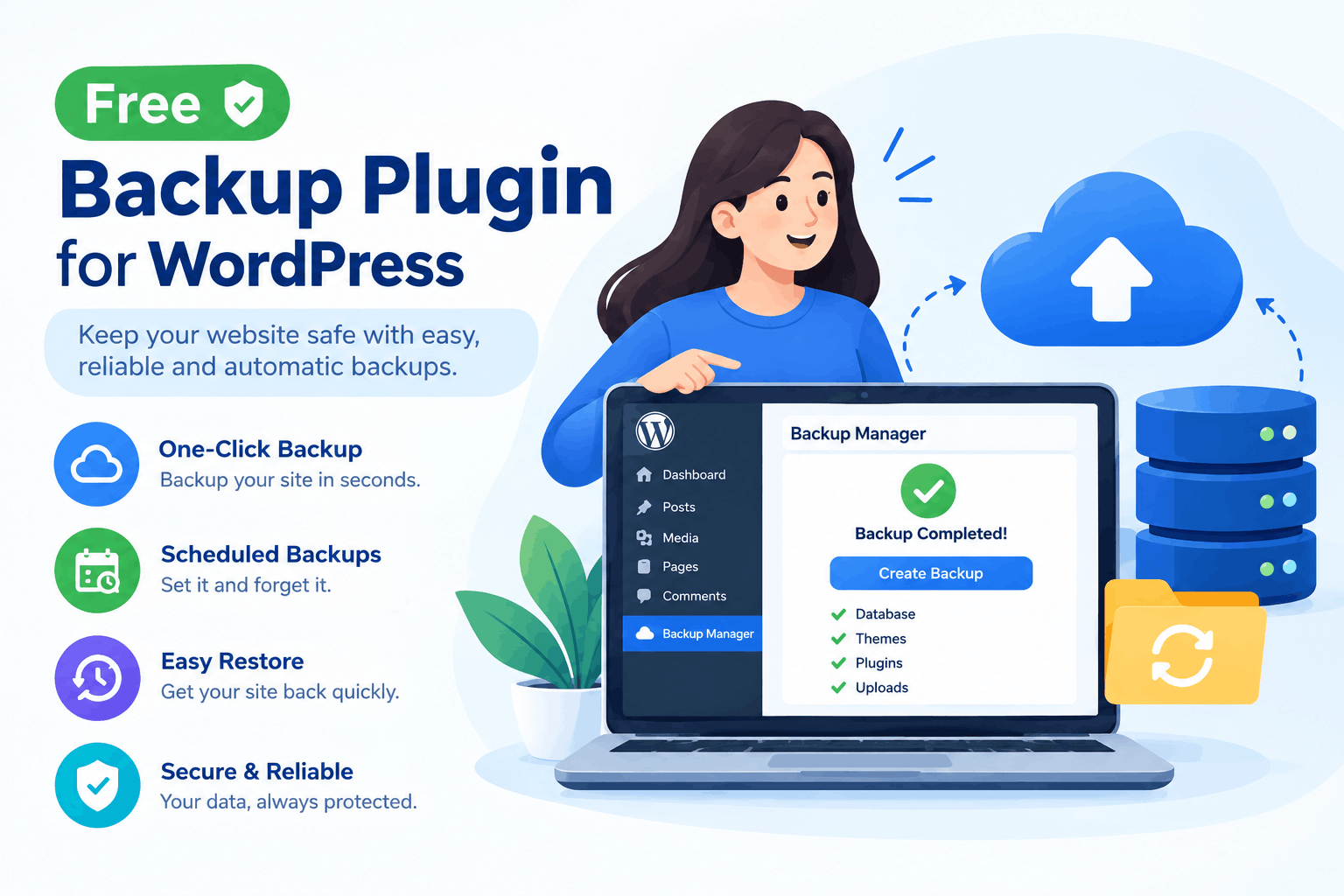
Free Backup Plugin for WordPress: Why Gracewell Backend Manager Belongs on Your Site
Sooner or later, every WordPress site owner ends up searching for a free backup plugin for WordPress — usually right after a plugin update goes wrong, a host has downtime, or someone simply realizes they've never actually tested a restore. It's one of those things that feels optional right up until it isn't.
The trouble is, a lot of "free" backup plugins turn out to be free in name only. Cloud storage, scheduled backups, or one-click restores often sit behind a premium upgrade. That's the gap Gracewell Backend Manager was built to close, and in this post, we'll walk through why it's a solid, no-cost choice for keeping your site safe.
Why Most Free Backup Plugins Fall Short
Before getting into what Gracewell Backend Manager does well, it's worth looking at why so many backup plugins leave people frustrated in the first place. Some recurring patterns:
- Cloud storage is locked behind a paywall: Local backups are free, but sending them to Google Drive or Dropbox usually costs extra.
- Scheduling is limited: Free tiers often cap you to manual backups or a single fixed schedule.
- Restores are the paid feature: Some plugins let you create a backup for free but charge you to actually restore it.
- They're heavy on server resources: Poorly optimized backup processes can slow down or even crash shared hosting.
- Confusing settings: Too many options, unclear defaults, and no guidance on what to actually back up.
- No real visibility: No logs, no confirmation emails, so you're left hoping the backup ran instead of knowing it did.
Taken together, it's easy to see why backups get put off. Gracewell Backend Manager was designed specifically around avoiding these pitfalls, and if you'd like more context on how site security and backups tie together, our WordPress Security Report 2026 is a useful companion read.
What Is Gracewell Backend Manager?
Gracewell Backend Manager is a free WordPress plugin built to handle full-site backups — your database and your files — without requiring a paid plan to make it genuinely usable. Instead of splitting essential features across free and premium tiers, it keeps the core backup workflow complete from the moment you activate it.
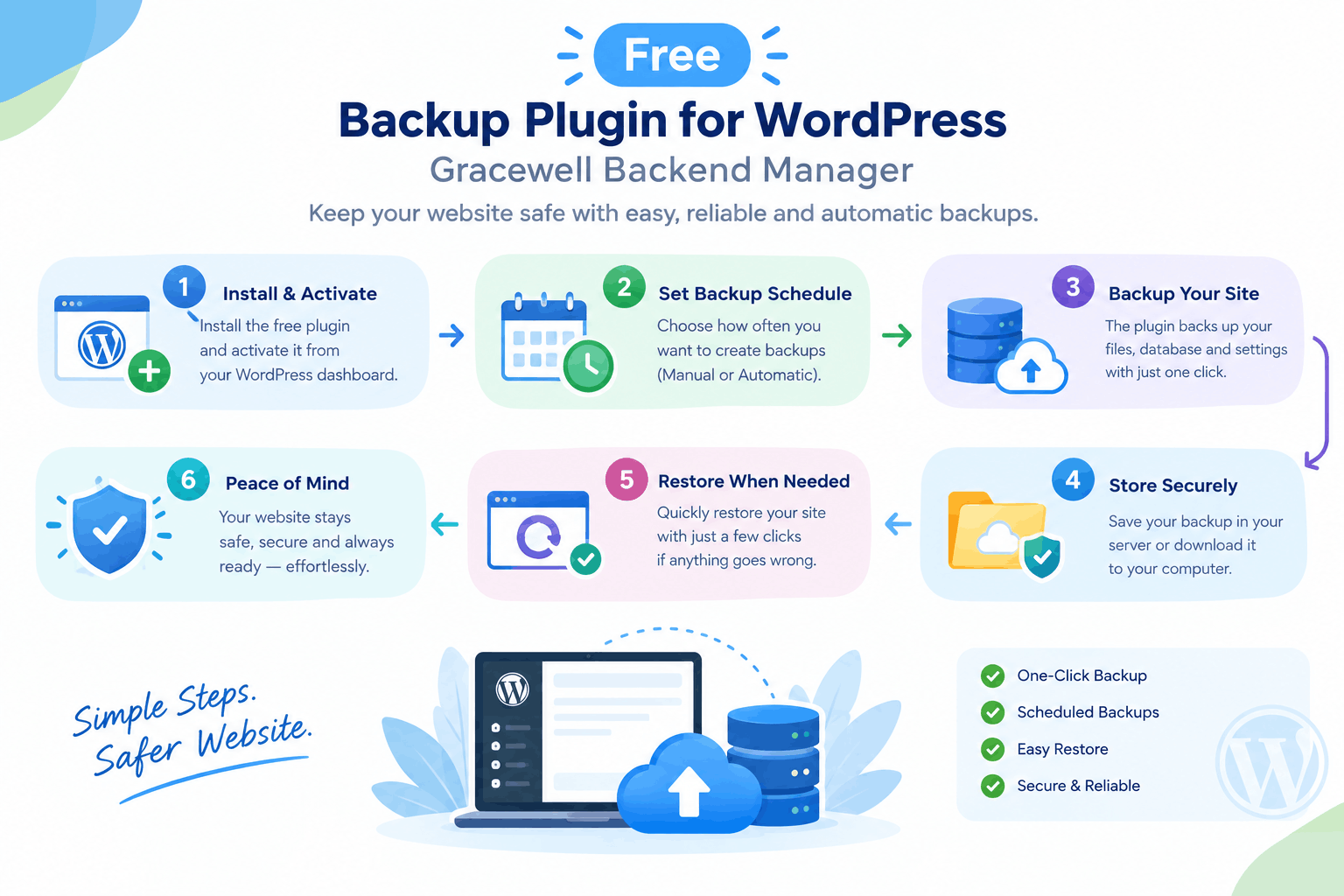
You can run backups manually or set them on a recurring schedule, store them locally or push them to cloud storage, and restore a previous version when something goes wrong — all from inside your WordPress dashboard.
It comes from the same team behind Gracewell's other WordPress tools, built around a straightforward idea: protecting your site shouldn't depend on how much you're willing to pay for it.
Why It's Worth Choosing
With no shortage of backup plugins already available, here's what actually makes Gracewell Backend Manager worth a spot on your site:
Nothing Held Back
Scheduling, restores, and cloud storage all ship in the free version — no upgrade prompts along the way.
Built to Run Quietly
Backups run in the background without hammering server resources, even on shared hosting.
You Choose Where Backups Live
Keep backups on your server, or send them off-site so a hosting issue doesn't take your only copy with it.
Restores You Can Actually Test
One-click restore means you can verify your backups work before you're ever in an emergency.
Clear Logs and Alerts
You'll know exactly when a backup ran, whether it succeeded, and where the file is stored.
What You Actually Get, Free
Here's what comes included the moment you activate the plugin — none of it reserved for a later upgrade:
Full Site Backups
Back up your database and files together, so a restore brings your whole site back, not just part of it.
Scheduled Backups
Set daily, weekly, or custom intervals and let backups run automatically in the background.
Cloud Storage Support
Send backups off-site so you're covered even if something happens to your hosting account.
One-Click Restore
Roll back to a previous backup directly from your dashboard, without touching FTP or phpMyAdmin.
Email Notifications
Get notified when a backup completes or fails, so you're never guessing whether it actually ran.
Exclude What You Don't Need
Skip cache folders, logs, or large media directories to keep backup files lean and fast.
Backup Logs
A clear history of every backup run, so you always know what happened and when.
Low-Resource Design
Built to run smoothly even on shared hosting, without eating into memory or CPU limits.
Admin-Only Access
Backup files and settings are only reachable by authenticated site administrators.
Simple, Guided Setup
A clean dashboard that gets you backing up correctly in minutes, without a manual.
Who Should Be Backing Up With It
Backups matter for basically every WordPress site, but a few groups benefit especially quickly:
🏢 Small Businesses
Protect your site, orders, and customer data without needing an IT team on standby.
✍️ Bloggers
Keep years of published content safe from a bad plugin update or a hosting mishap.
🛠️ Freelance Developers
Run quick backups before client-site updates, so a rollback is always one click away.
🛒 E-Commerce Stores
Safeguard product catalogs and order history where downtime directly costs revenue.
📈 Agencies Managing Multiple Sites
Standardize backup schedules across client sites without paying per-site licensing.
Feature Comparison Table
Here's how Gracewell Backend Manager stacks up against some of the more familiar names in WordPress backups:
| Feature | Gracewell Backend Manager (Free) | UpdraftPlus (Freemium) | Duplicator (Freemium) | BackWPup (Freemium) |
|---|---|---|---|---|
| Cost | 100% Free | Free + $70/yr Premium | Free + $69/yr Pro | Free + Paid Add-ons |
| Scheduled Backups | ✓ Yes | ✓ Yes | Paid Only | ✓ Yes |
| Cloud Storage Support | ✓ Yes | Limited (Free) | Paid Only | Limited (Free) |
| One-Click Restore | ✓ Yes | ✓ Yes | Paid Only | ✗ No |
| Email Notifications | ✓ Yes | ✓ Yes | ✗ No | ✓ Yes |
| Backup Logs | ✓ Yes | Limited (Free) | ✗ No | ✓ Yes |
| Exclude Files/Folders | ✓ Yes | ✓ Yes | Paid Only | ✓ Yes |
| Shared Hosting Friendly | ✓ Yes | Depends on Site Size | Depends on Site Size | Depends on Site Size |
| Setup Time | Under 5 Minutes | 10–20 Minutes | 15–30 Minutes | 15–30 Minutes |
Line by line, the same theme keeps showing up — the features people actually rely on during a real emergency, like restores and cloud storage, tend to be the ones locked behind a paid plan elsewhere. Gracewell Backend Manager keeps them all in the free tier.
How Your Backups Are Protected
A backup plugin only matters if the backups themselves are handled responsibly, so security was treated as a core requirement rather than an add-on.
-
🔒
Access Restricted to AdminsOnly authenticated site administrators can trigger backups, download files, or change settings.
-
📂
You Control Storage LocationChoose to keep backups local, push them to the cloud, or do both — nothing is forced.
-
🚫
No Unnecessary Data SharingBackup files aren't routed through third-party analytics or tracking services.
-
🏆
Full Ownership of Every BackupDownload, delete, or move your backup files whenever you need to — they're entirely yours.
-
🛡️
Built With Recovery in MindSince restores are tested and one-click, you're not left guessing whether a backup will actually work when it matters.
✅ Key Takeaways
- Gracewell Backend Manager is completely free — scheduling, restores, and cloud storage aren't locked behind an upgrade.
- Full-site backups cover both your database and your files together.
- Backups run in the background without straining shared hosting resources.
- Email alerts and backup logs mean you always know a backup actually ran.
- One-click restore lets you recover — or test recovery — without touching FTP or phpMyAdmin.
- Well suited to small businesses, bloggers, freelance developers, stores, and agencies alike.
- Matches or beats several paid alternatives on cost, restore access, and cloud support.
Get Gracewell Backend Manager Free
Start backing up your WordPress site today with a plugin that doesn't hold restores or cloud storage behind a paywall.
⬇ Download NowSee the Full 2026 WordPress Security & Backup Report
Get the complete picture on why regular backups are one of the simplest ways to protect your WordPress site in 2026.
📄 Read the ReportFrequently Asked Questions
Is Gracewell Backend Manager really free?
Does it back up both my files and my database?
Can I schedule backups instead of running them manually?
Where are my backups stored?
How do I restore a backup if something goes wrong?
Will backups slow down my site or hosting?
Can I exclude certain files or folders from backups?
How will I know if a backup succeeded or failed?
Also Looking to Capture Leads From Your Site?
If backups have you thinking about the rest of your site's setup, take a look at our guide on choosing a popup plugin for WordPress.
🔗 See the Popup Plugin GuideConclusion
At the end of the day, a free backup plugin for WordPress should do more than just create a backup somewhere and hope for the best. It should schedule reliably, store your files wherever you choose, and restore cleanly when you actually need it to.
That's precisely what Gracewell Backend Manager sets out to do, without asking you to pay for the parts that matter most. So rather than waiting for a bad update or a hosting outage to make backups feel urgent, it's worth setting this up now, while everything is still running smoothly.
For a broader look at how backups fit into your site's overall security posture, our WordPress Security Report 2026 is a good next read.
⬇ Download Gracewell Backend Manager Free

Comments are closed