Best Site Backup Plugin for WordPress: What to Actually Look For (Before You Install One)
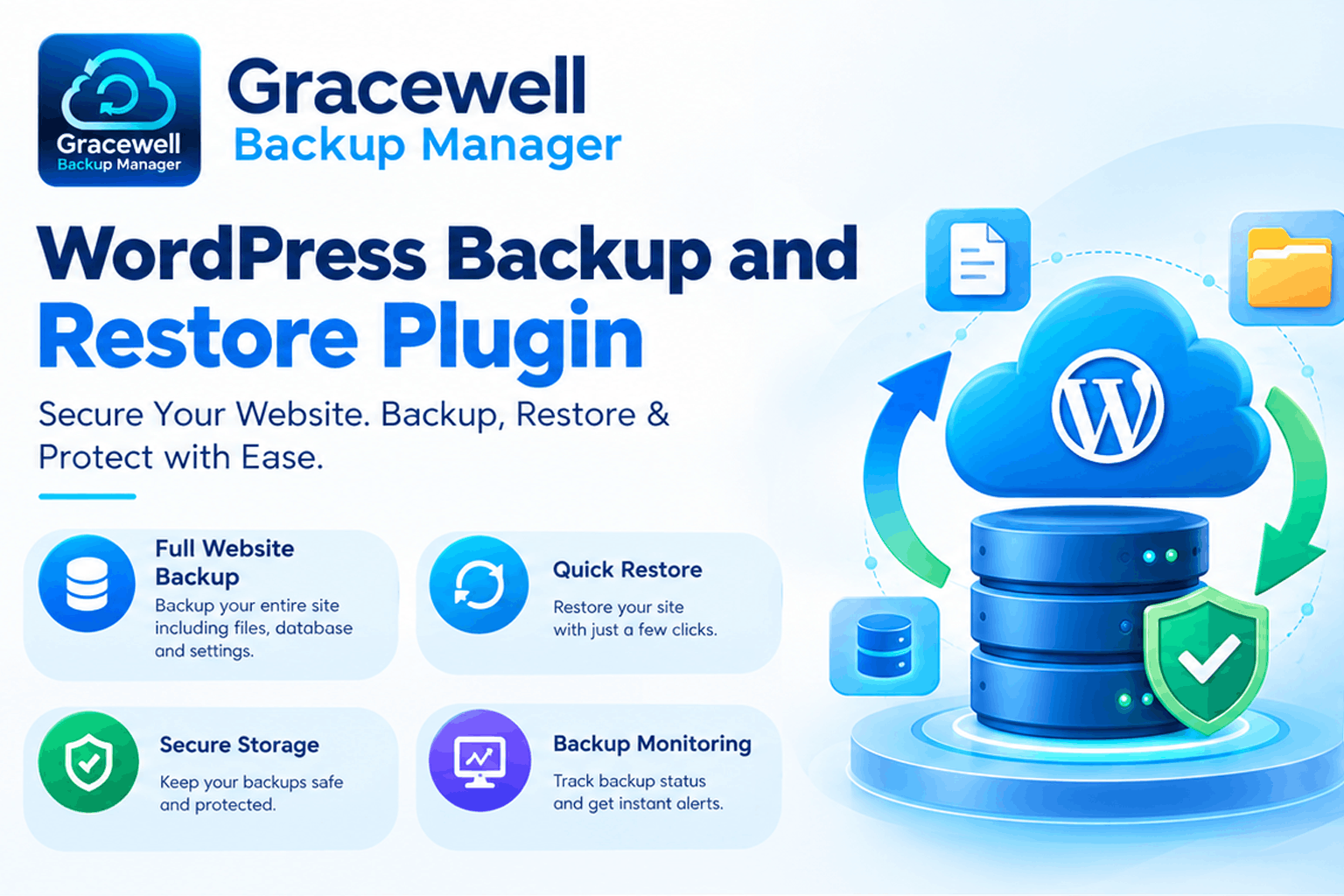
Quick answer: yes, a backup plugin is worth having on almost every WordPress site — manual backups depend on you remembering, and that's exactly where they tend to fail. Look for automatic scheduling, one-click restore, and secure storage. Gracewell Backup Manager checks all three, which is why it's a strong pick for the best site backup plugin for WordPress, for free.
Most people don't think about backups until right after they've needed one. A plugin update goes wrong, a hosting migration loses a folder, or someone accidentally deletes a page that took hours to build — and suddenly there's nothing to restore from.
So before that happens to you, it's worth actually understanding what the best site backup plugin for WordPress should do, rather than just installing the first one that shows up in a search. That's what this guide walks through.
Why We Need Backups
A website backup isn't really about pessimism — it's about giving yourself room to make changes without fear. Once you know you can restore your site, updates, new plugins, and design tweaks all feel a lot less risky.
Here's where backups usually end up saving the day:
- Updates go sideways. A theme or plugin update can conflict with something else on your site, and rolling back is far faster than debugging under pressure.
- Hosting problems happen. Servers crash, migrations fail, and files occasionally vanish for no clear reason at all.
- Security incidents occur. If your site is ever compromised, a clean backup from before the incident is usually the quickest way back to normal.
- People make mistakes. A deleted page, an overwritten image, an accidental bulk edit — backups quietly undo all of it.
None of these are rare events. In fact, most WordPress site owners run into at least one of them eventually — which is exactly why backups aren't optional so much as they are inevitable.
Is a Plugin Your Best Option?
Technically, you don't need a plugin to back up a WordPress site. You could export your database manually, download your files over FTP, and store copies somewhere safe yourself. Some experienced developers do exactly that.
But here's the catch: manual backups only work if you actually remember to do them, consistently, every single time. And that's precisely where most manual backup routines quietly fall apart — life gets busy, a week turns into a month, and the last backup on record is older than anyone would like to admit.
A plugin removes that weak link entirely. Once it's set up, backups happen automatically on a schedule, whether you remember or not. For most site owners — bloggers, small businesses, agencies managing several sites — that reliability alone makes a plugin the more practical choice, even if manual backups are technically possible.
So, is a plugin your best option? For anyone who isn't backing up manually with real discipline, yes — it almost always is.
What to Look For
Not every backup plugin is built the same way, so here's what actually separates the best site backup plugin for WordPress from one that just looks good on paper:
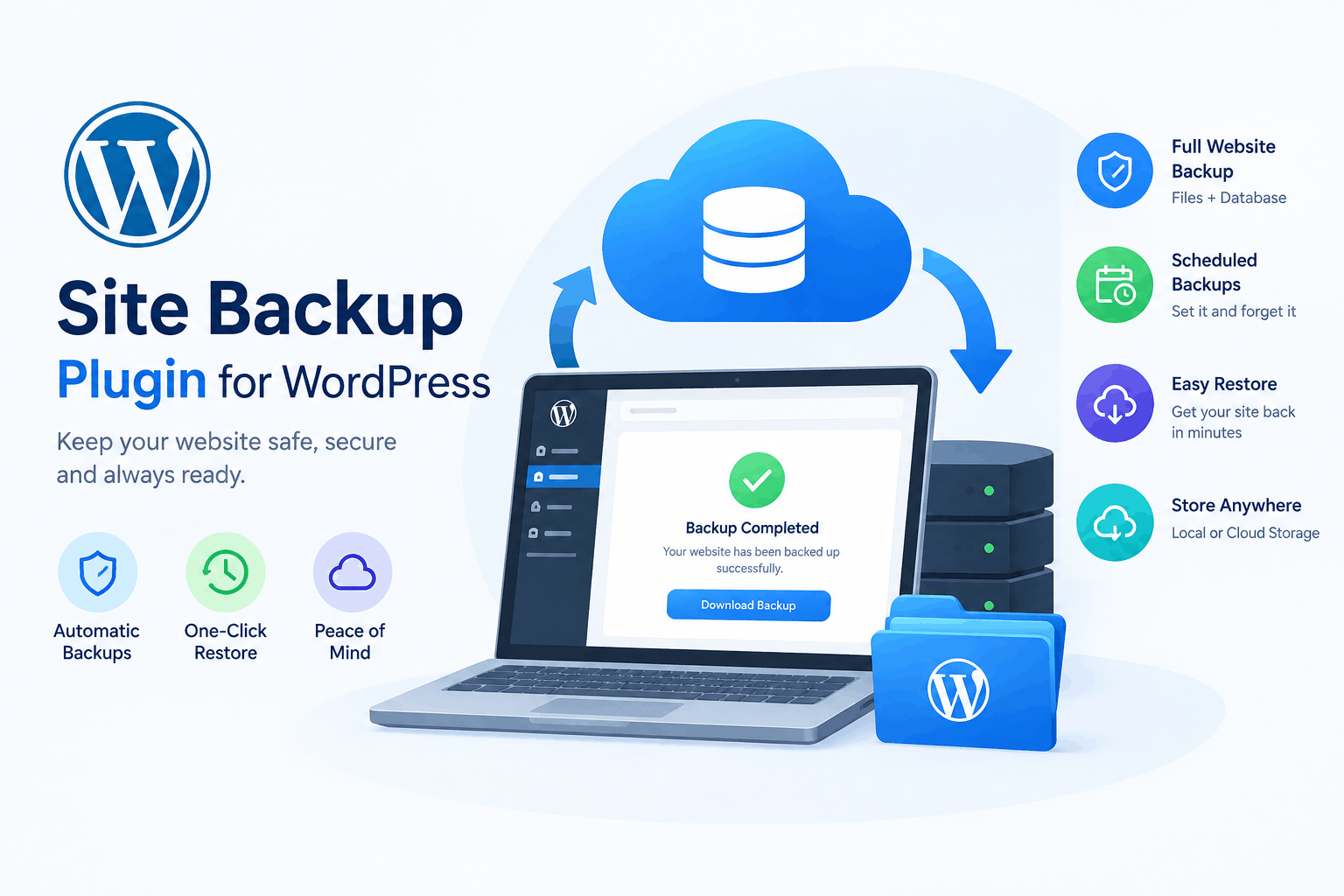
- Automatic scheduling. Backups should run on their own — daily, weekly, or whatever fits your site — without needing to be triggered manually.
- One-click restore. If something breaks, you shouldn't need a developer or a support ticket just to get your site back.
- Full-site coverage. A backup that only covers files, or only the database, isn't a complete safety net. You want both, together.
- Low resource usage. A backup plugin that slows your live site down while it runs is solving one problem by creating another.
- Simple to actually use. If the settings are confusing, there's a real chance backups never get configured properly in the first place.
Run any plugin you're considering through that list before installing it. It takes a few minutes, and it saves you from finding out the hard way that a "backup" plugin wasn't really backing anything up at all.
Security
A backup is only as useful as its security. If backup files are stored insecurely — sitting in a publicly accessible folder, for instance — they can become a security risk themselves rather than a safeguard.
A solid backup plugin should keep backups restricted to logged-in administrators, avoid exposing raw backup files publicly, and give you control over where copies are stored. That combination — access control, private storage, and clear ownership of your own backup files — is worth checking for in any plugin before you trust it with your site.
At the end of the day, security and backups go hand in hand — one protects your site going forward, and the other protects your ability to recover if that protection ever fails.
Want a backup plugin that checks all of the above? Gracewell Backup Manager is free to install and takes a few minutes to set up.
⬇ Download NowWhy Experts Choose Gracewell Backup Manager
Ask any experienced WordPress developer what they actually want from a backup plugin, and the answer is rarely "more features." It's usually the opposite — something that works quietly, restores cleanly, and doesn't need constant attention. That's the exact reasoning that tends to bring people to Gracewell Backup Manager.
- It does one job well, instead of ten jobs adequately. Developers managing several client sites tend to prefer a focused tool over a bloated one with features that never get used.
- Restores need to be fast under pressure. When a site goes down, the value of one-click restore becomes obvious immediately — there's no time to be digging through documentation.
- Clients don't want to manage complexity. Agencies handing sites off to non-technical clients need something the client can't easily break, and a simple settings panel does exactly that.
- Free shouldn't mean limited. A lot of professionals are naturally cautious about free plugins holding back core features. Gracewell Backup Manager keeps scheduling, restore, and full-site coverage all included from the start.
None of that means it's the only good option out there. But for the reasons above, it's become a plugin that professionals recommend to clients who just want backups handled properly, without having to think about it again.
Common Questions
How often should a WordPress site be backed up?
Can I back up a WordPress site without a plugin?
Are backup files a security risk?
Is Gracewell Backup Manager free?
Will backups slow down my site?
Final Thoughts
Backups aren't exciting, but they're one of the few things on a WordPress site that quietly determine how bad a bad day actually gets. A plugin removes the biggest point of failure — forgetting — and a good one keeps your backups secure while it does.
If you're weighing your options, run any plugin through the checklist above before installing it. And if you'd like the best site backup plugin for WordPress without the guesswork — and one that professionals tend to reach for — Gracewell Backup Manager is free, straightforward, and ready whenever you are. If you'd rather start lighter, our free backup plugin for WordPress guide is a good next stop too.
⬇ Download Gracewell Backup Manager Free