

Overview
Gracewell LeadForge helps you capture more leads with beautiful, professional popups that don't annoy your visitors. Designed with simplicity and performance in mind, it lets you collect visitor emails and custom inquiries directly into your WordPress database — no external account, no monthly SaaS fee, no page-speed penalty.
Whether you're a blogger growing your newsletter, a freelancer capturing project inquiries, or a small business owner building a customer pipeline, LeadForge gets you collecting leads within minutes of activation. Every submission is stored securely in your own database and can be exported to CSV at any time — giving you full data ownership.
Key Features
LeadForge packs everything you need for professional lead capture into a single, no-bloat plugin. Here's what's included in the free version:
Easy Setup
Install, activate, and start capturing leads in minutes. No API keys or external accounts required.
Smart Triggers
Time delay trigger to show popup at the right moment — after visitors have seen your content first.
Cookie Suppression
Don't annoy visitors — LeadForge remembers when they close the popup and respects their preference.
Customizable Fields
Show or hide Name, Phone, and Message fields. Email is always included as the required field.
Email Notifications
Get notified instantly when you capture a new lead. All fields — name, email, phone, message, page — included in each alert.
CSV Export
Download your leads for use in other tools. Import directly into your CRM, email platform, or spreadsheet.
Mobile Responsive
The popup looks great and works flawlessly on all devices — phones, tablets, and desktops.
Customizable Colors
Match your brand perfectly. Change button, background, and text colors from the settings panel.
Lead Management
View, manage, and export all your leads directly inside the WordPress admin dashboard.
Professional Design
Clean, modern interface built to convert. Loads asynchronously with zero impact on page speed.
Who Is It For?
LeadForge is purpose-built for WordPress users who need a reliable, privacy-friendly way to grow their audience or capture business inquiries — without the overhead of complex marketing platforms.
Small Businesses
Collect customer inquiries directly without needing a separate CRM.
Bloggers & Creators
Build your email list with a clean, non-intrusive popup that converts readers into subscribers.
Service Providers
Generate leads from visitors and turn portfolio traffic into project inquiries.
E-commerce Stores
Capture potential customers' emails for promotions, restock alerts, and follow-ups.
Anyone Growing a List
Simple setup works for any WordPress site looking to grow their email audience.
Free vs Pro Comparison
The free version is fully functional and production-ready. The Pro version (coming soon) unlocks advanced targeting, integrations, and analytics for teams that need more control.
| Feature | Free | Pro |
|---|---|---|
| Number of popups | 1 | Unlimited |
| Email field (required) | ✓ | ✓ |
| Name, Phone & Message fields | ✓ Optional | ✓ Optional |
| Time-delay trigger | ✓ | ✓ |
| Cookie-based suppression | ✓ | ✓ |
| Lead database storage | ✓ | ✓ |
| CSV export | ✓ | ✓ |
| Admin email notifications | ✓ | ✓ |
| Color & brand customization | ✓ | ✓ |
| Mobile responsive design | ✓ | ✓ |
| Exit-intent trigger | — | Pro |
| Scroll percentage trigger | — | Pro |
| A/B testing | — | Pro |
| Advanced analytics | — | Pro |
| Mailchimp integration | — | Pro |
| ConvertKit integration | — | Pro |
| Custom CSS editor | — | Pro |
| Priority support | — | Pro |
Installation
LeadForge can be installed via the WordPress plugin directory or manually. Follow the steps below:
- Upload the plugin
Upload the
gracewell-leadforgefolder to/wp-content/plugins/or install directly from the WordPress plugin directory. - Activate the plugin
Navigate to Plugins → Installed Plugins in your WordPress dashboard and click Activate under Gracewell LeadForge.
- Open Settings
Go to Gracewell LeadForge → Settings in the left sidebar menu to configure your popup.
- Customize your popup
Set your headline, choose which fields to show (Name, Phone, Message), adjust colors, and configure the time-delay trigger.
- Enable and save
Check Enable Popup and click Save Settings. Your popup is now live on all pages.
Privacy & Data
LeadForge stores the following data in your WordPress database when a visitor submits the form: Name, Email, Phone, Message, Page URL, and IP Address. This data is accessible only to administrators and is never shared with third parties.
If your site is subject to GDPR, CCPA, or similar regulations, update your Privacy Policy to disclose what data this plugin collects and how it is used.
Screenshots
A visual overview of the LeadForge lead dashboard, settings panel, and plugin installation screen.
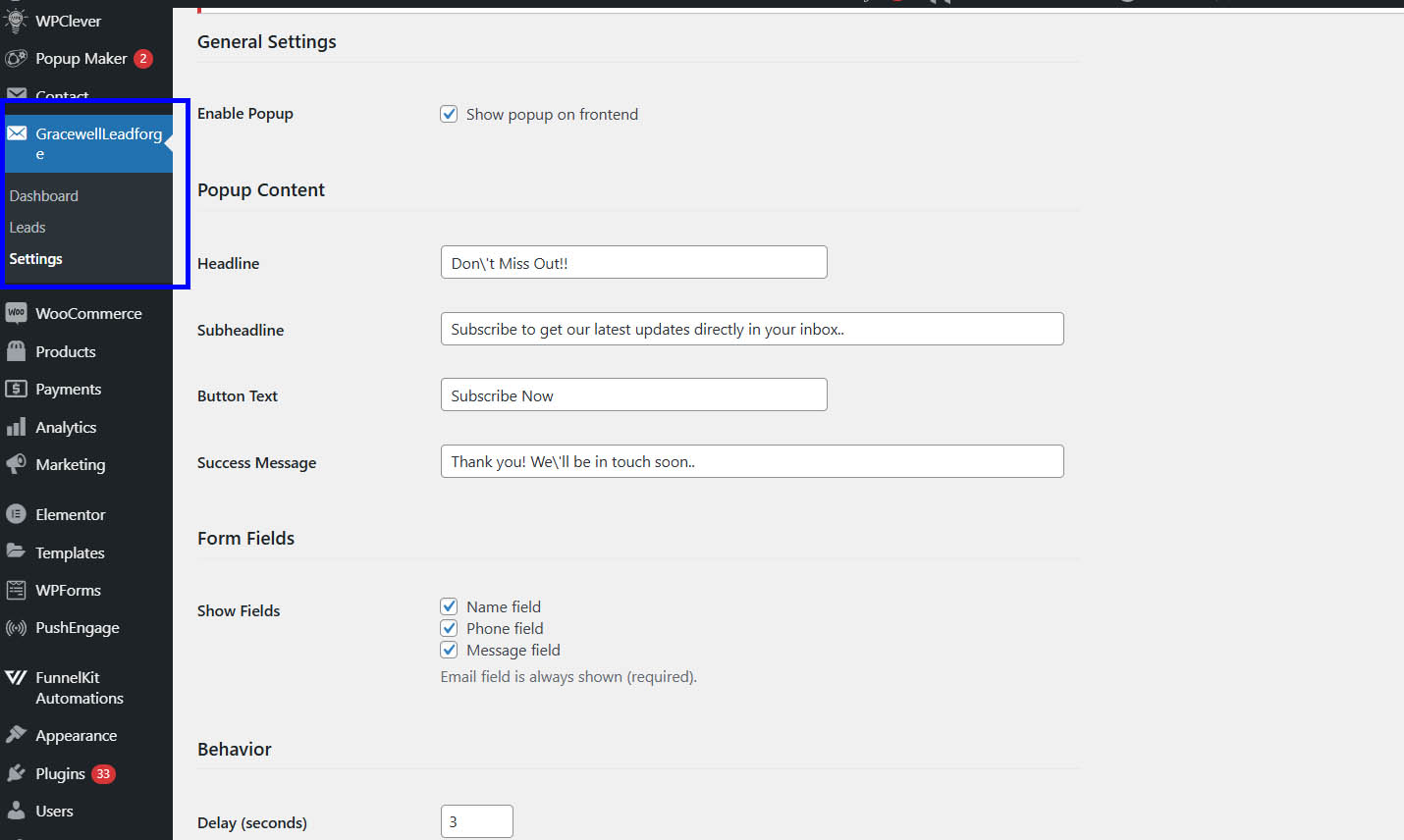
1. Plugin installed and actived in WordPress
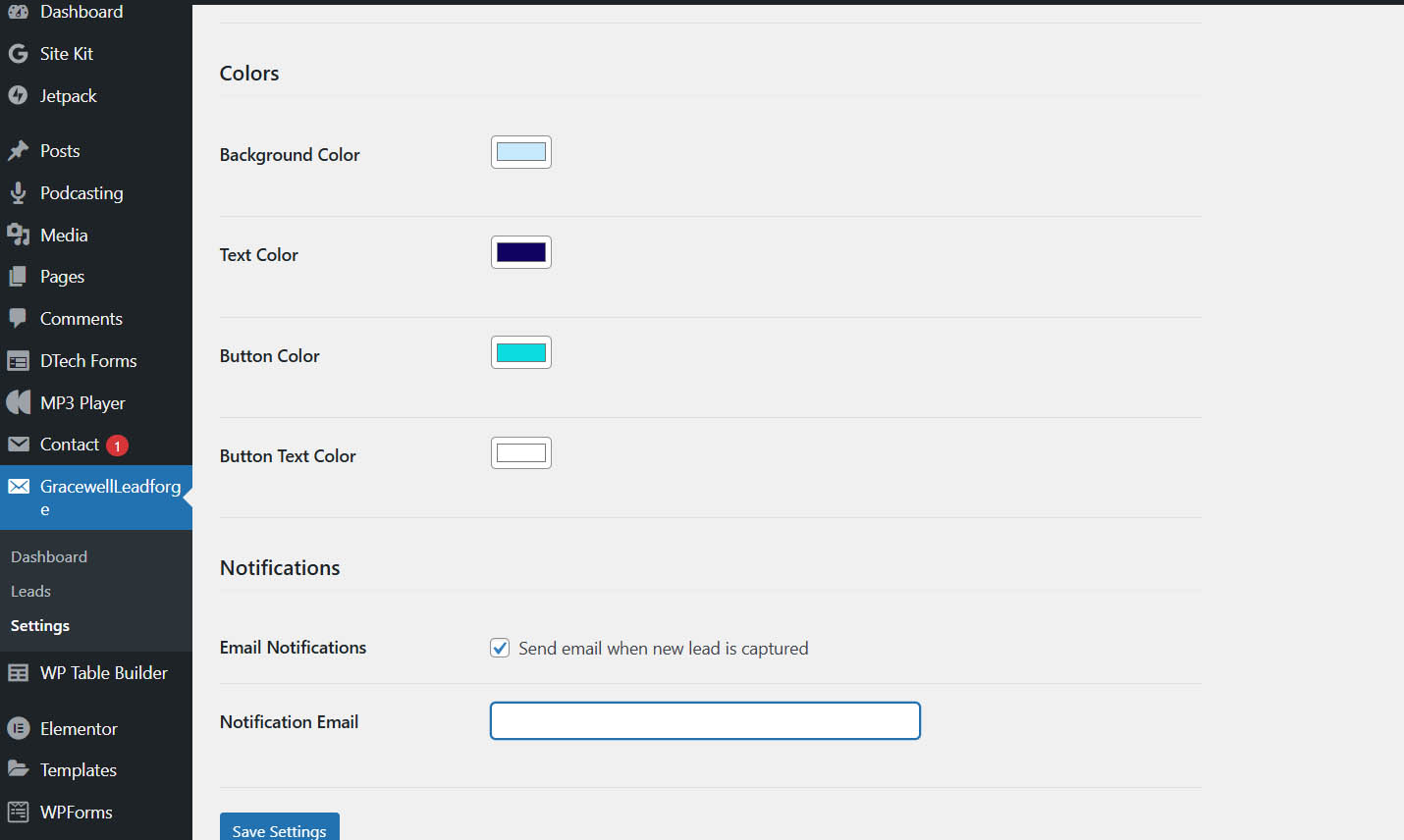
2. Easy-to-use settings page — customize popup content, fields and behavior
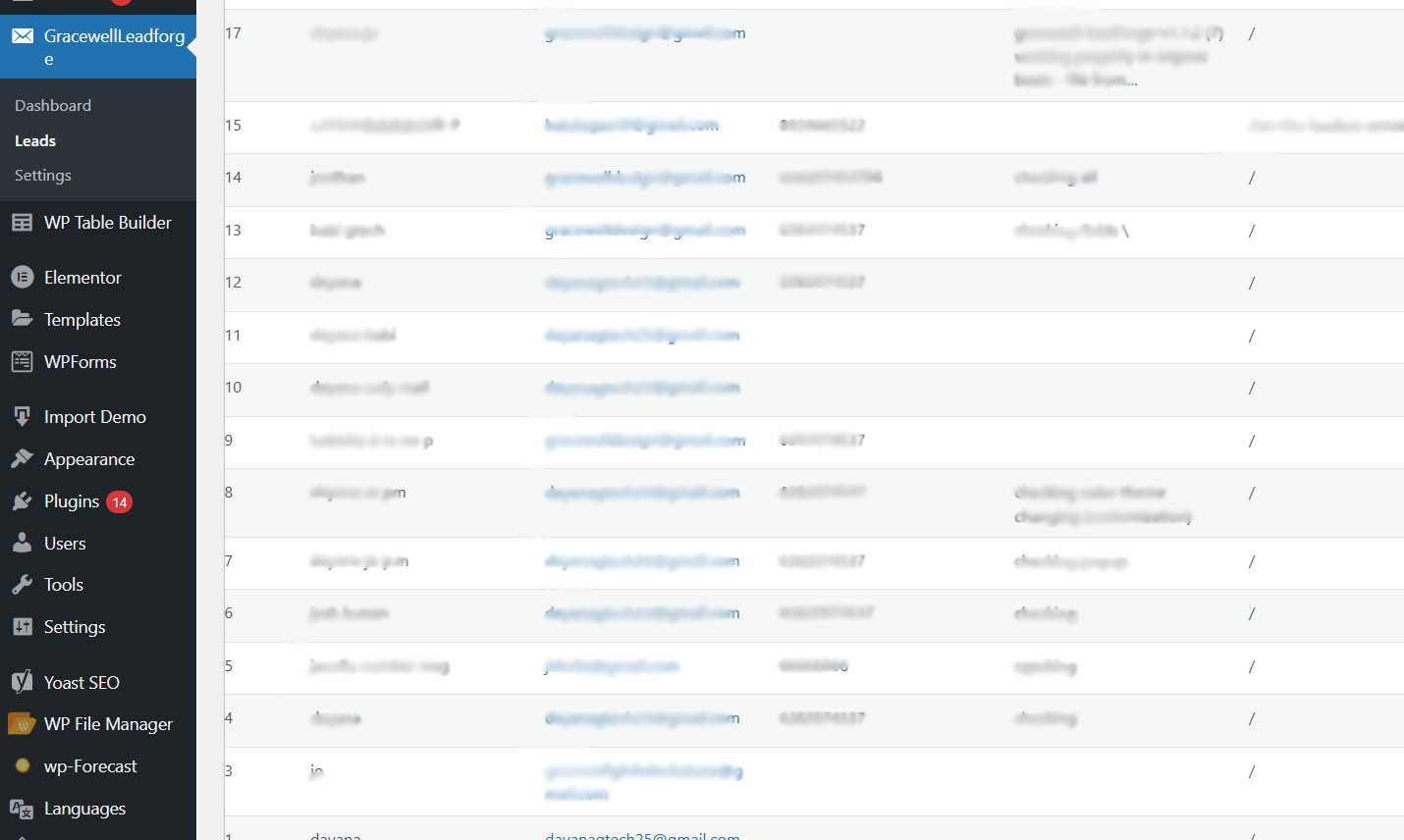
3.Lead management dashboard with total leads and status overview
Frequently Asked Questions
Changelog
- Fixed: Success message not visible after form submission
- Fixed: Color and content changes not reflected on frontend after saving settings
- Fixed: Phone number and message fields missing from admin notification email
- Improved: All lead fields (name, email, phone, message, page) now included in notification email
- Initial release of Gracewell LeadForge on WordPress.org
- Single popup functionality with time delay trigger
- Cookie suppression and lead capture & management
- CSV export, email notifications, color customization
- Mobile responsive design